Supported platforms.
Choose the platform that fits your execution style.

The most widely used multi-asset trading platform.
Familiar charting, one-click trading, and custom indicators.
Log in to MetaTrader 5.
Set your password
Once you purchase the Challenge, Trader Zone immediately asks you to set a password for your MetaTrader 5 account.
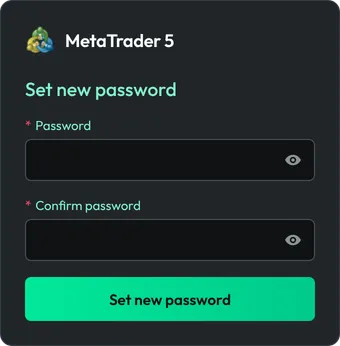 Save your password now.For your security, we do not store it. If you lose it, you can set a new one with Change MT5 password in the Challenge details.
Open the Challenge details in Trader Zone
Go to My challenges and open the Challenge details. Click on MetaTrader 5. Keep your Trading account code at hand. It is your MetaTrader 5 login.
Platform: MetaTrader 5Trading account code:512047
Log in to the terminal
The MetaTrader 5 web terminal opens with the server TraderOneForex-Live already filled in. Enter your Trading account code as Login and your Password, then click Connect to account.
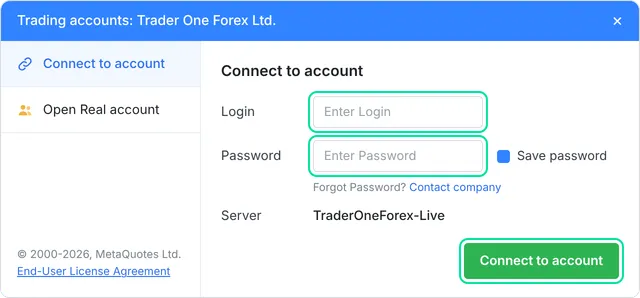
You are in
You are now logged in to the MetaTrader 5 terminal and ready to trade.
On your phone? In the MetaTrader 5 app from the App Store or Google Play, search for the server TraderOneForex-Live, then log in with your Trading account code and password.
Already have an account on this platform? Every Challenge gets a new trading account, so the steps are the same.

Ultra-fast order processing.
Advanced analytics and in-depth charting.
Log in to cTrader.
Get your cTrader ID
Once you purchase the Challenge, your cTrader account is created immediately. What happens next depends on whether you already use cTrader.
New to cTrader
Set your password
cTrader e-mails you. Click Log in in that e-mail and set your password.
No e-mail within a few minutes? Check your spam folder.
Already have a cTrader ID
Nothing to set up
You will not get an e-mail. Your TRONEXO account is added to the cTrader ID you already use.
Open cTrader
Go to My challenges and open the Challenge details. Click on cTrader. Alternatively, use the TRONEXO cTrader app for macOS or Windows.
Platform: cTrader
Log in with your cTrader ID
Click Log in in the top right corner and fill in the login window:
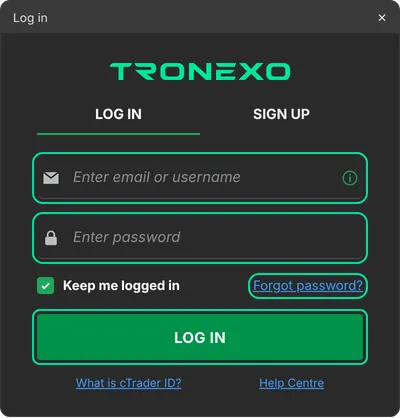
New to cTrader
E-mail: the one you registered with at TRONEXO.
Password: the one you set via the cTrader e-mail.Already have a cTrader ID
E-mail or username: your existing cTrader ID.
Password: your current cTrader password. Forgot it? Click Forgot password? in this window.Select your TRONEXO account
Click the account bar in the top right corner and select your TRONEXO account. You are now logged in to cTrader and ready to trade.
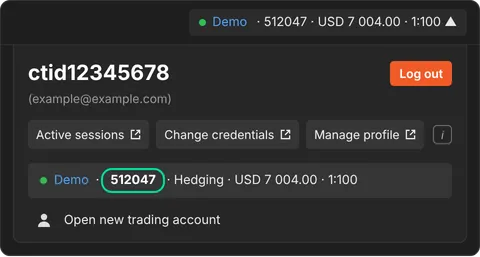 Check that you are in the right account.The account number in cTrader must match the Trading account code of your Challenge in Trader Zone.Trading account code:512047
Your choice of app. Use cTrader as a web app, on Windows or macOS, or on your phone via the App Store or Google Play.
Automated trading (EAs, cBots, scripts, API order entry) is not permitted on TRONEXO accounts. Prohibited practices